For the complete documentation index, see llms.txt. Markdown versions of all docs pages are available by appending .md to any docs URL.
kagent
Deploy your agentregistry MCP server to a Kubernetes cluster.
Before you begin
- Follow the Get started guide to install agentregistry.
- Connect the kagent runtime so that you can deploy MCP servers to your Kubernetes cluster.
- Publish an MCP server.
- If you are using a kind cluster and pushed the image to a local registry rather than a remote one, load the image into the cluster. Replace
ghcr.io/my-org/mymcp:latestwith the image identifier from yourmcp.yamlfile and<cluster-name>with the name of your kind cluster.kind load docker-image ghcr.io/my-org/mymcp:latest --name <cluster-name>
Deploy the MCP server
List the runtimes available in agentregistry. Verify that you see the
kubernetes-defaultruntime, which is the runtime that you use to deploy MCP servers to Kubernetes by using the kagent OSS project.arctl get runtimesExample output:
NAME                 TYPE
kubernetes-default   Kubernetes
local                Local
Create a Deployment resource that deploys a published MCP server to the
kubernetes-defaultruntime.arctl apply -f- <<EOF apiVersion: ar.dev/v1alpha1 kind: Deployment metadata: name: mymcp-server spec: env: KAGENT_NAMESPACE: default runtimeRef: kind: Runtime name: kubernetes-default targetRef: kind: MCPServer name: mymcp tag: latest EOFExample output:
✓ Deployment/mymcp-server createdList the deployments and verify that
mymcp-serverappears.arctl get deploymentsExample output:
NAME                    TARGET   VERSION   TYPE   RUNTIME              STATUS
default/mymcp-server   mymcp    latest    mcp    kubernetes-default   deploying
Verify the deployment
Verify that kagent created an MCPServer resource in your cluster.
kubectl get mcpservers -o yamlExample output:
apiVersion: v1
items:
- apiVersion: kagent.dev/v1alpha1
  kind: MCPServer
  metadata:
    annotations:
      aregistry.ai/deployment-id: my-mcp-server
    creationTimestamp: "2026-08-19T21:10:05Z"
    generation: 1
    labels:
      aregistry.ai/deployment-id: my-mcp-server
      aregistry.ai/managed: "true"
    name: mymcp-my-mcp-server
    namespace: default
    resourceVersion: "103614"
    uid: 26fb8faa-3279-4aea-b8be-b504f2125479
...
Verify that a pod was created for your MCP server and is running in your cluster.
kubectl get pod | grep mymcpExample output:
mymcp-my-mcp-server-77694d689d-gv98q 1/1 Running 0 2m37s
Test the deployed server
Port-forward the MCP server service.
kubectl port-forward service/mymcp-mymcp-server 3000In a separate terminal, list the available tools. Verify that you see the
example_echoandexample_sumtools.mcp-inspector --cli http://localhost:3000/mcp \ --transport http --method tools/list | jq '.tools[].name'Example output:
"example_echo"
"example_sum"
Call the
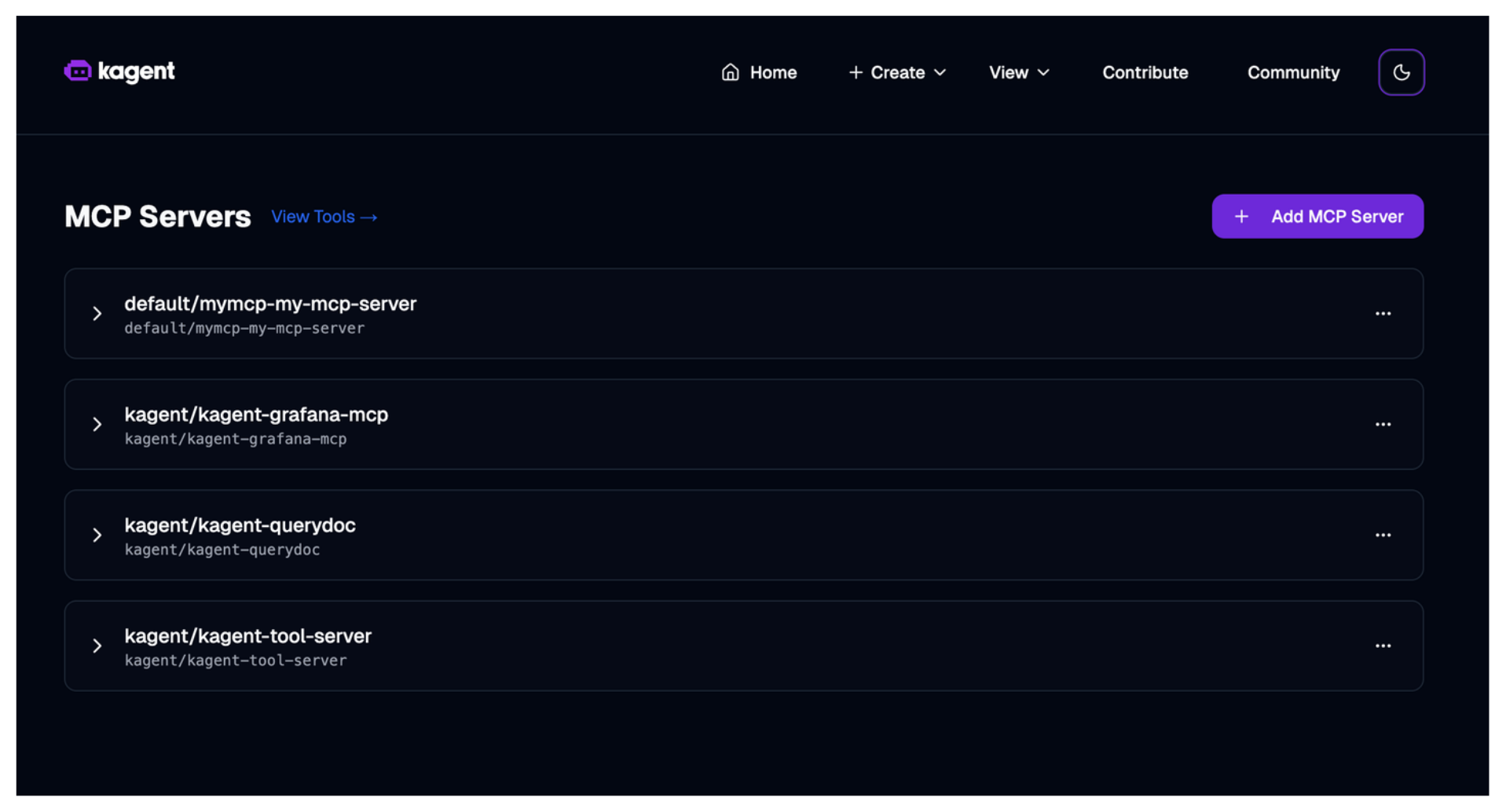
example_echotool and verify that you get back the echoed message.mcp-inspector --cli http://localhost:3000/mcp \ --transport http --method tools/call \ --tool-name example_echo \ --tool-arg message="hello world"Optional: Open the kagent dashboard and go to View > MCP & Tools to see the
my-mcpserver and its tools listed.kagent dashboard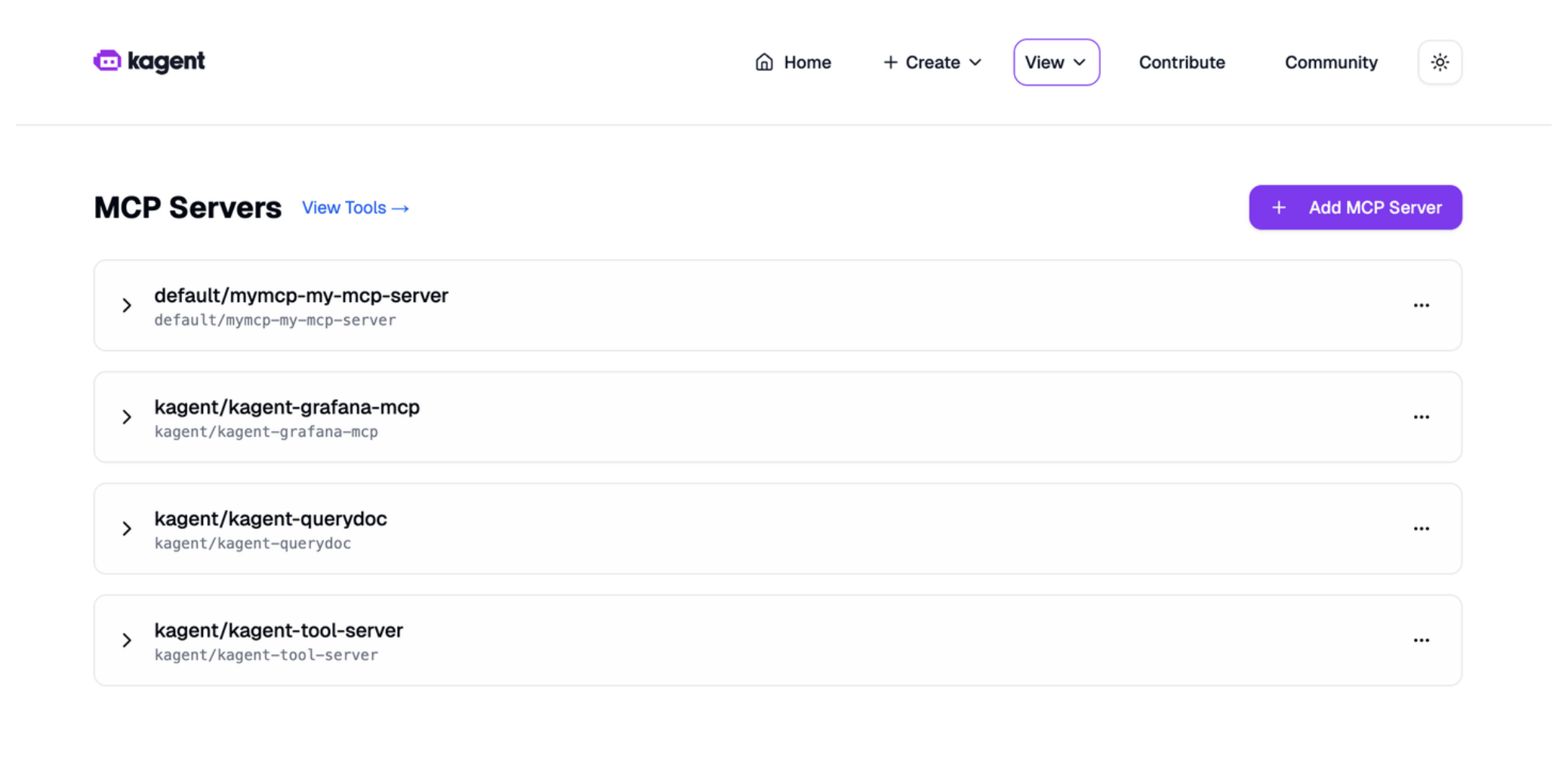
Cleanup
List the deployments and find the one you want to delete.
arctl get deploymentsRemove the deployment.
arctl delete deployment my-mcp-server