For the complete documentation index, see llms.txt. Markdown versions of all docs pages are available by appending .md to any docs URL.
kagent
Deploy an agent in your Kubernetes cluster.
Before you begin
- Follow the Get started guide to install agentregistry.
- Connect the kagent runtime so that you can deploy agents to your Kubernetes cluster.
- Publish an agent.
Deploy the agent
List the runtimes that are connected to agentregistry. Make sure that you see the
kubernetes-defaultruntime. This runtime leverages kagent to deploy agents and MCP servers to your Kubernetes cluster.arctl get runtimesExample output:
NAME                  TYPE
kubernetes-default    kubernetes
List the agents that are published in agentregistry. Note the name and tag of the agent you want to deploy.
arctl get agentsExample output:
NAME      TAG      MODE     DESCRIPTION
myagent   latest   source   My agent
If you are using a local kind cluster, load the agent image that you previously built, and the images of any referenced MCP servers, into the cluster. Skip this step if you are using a remote registry that your cluster can pull from directly.
kind load docker-image $REGISTRY/myagent:latest --name <cluster-name>
kind load docker-image $REGISTRY/mymcp:latest --name <cluster-name>
Create a Deployment that references your agent and the
kubernetes-defaultruntime. Theenvfield passes environment variables to the agent container at runtime. If your agent uses Gemini as its language model, it requires aGOOGLE_API_KEYto authenticate requests to the Gemini API.arctl apply -f- <<EOF apiVersion: ar.dev/v1alpha1 kind: Deployment metadata: name: myagent spec: targetRef: kind: Agent name: myagent tag: latest runtimeRef: kind: Runtime name: kubernetes-default env: GOOGLE_API_KEY: ${GOOGLE_API_KEY} EOFExample output:
✓ Deployment/myagent configuredVerify that the deployment was created.
arctl get deploymentsVerify that the agent pod is running in your cluster. If you referenced an MCP server in your agent manifest, the MCP server is also deployed as a pod in to the cluster.
kubectl get pods -n agentregistry | grep myagentExample output:
myagent-latest-myagent-656bf798b-2dph6     1/1     Running   0          35m
mymcp-myagent-669c4bdf68-cvvv6             1/1     Running   0          35m
Optional: Verify the agent and, if applicable, the MCPServer resources that were deployed to your cluster.
kubectl get agent -A -o yaml
kubectl get mcpserver -A -o yaml
Note
If the deployment fails, you can view it with
arctl get deployments. Remove the failed deployment witharctl delete deployment myagentand re-apply after fixing the issue.
Verify the agent
Open the kagent dashboard.
kagent dashboardNavigate to your agent and start chatting with the agent. For example, you can ask it what it can do for you. Verify that the agent replies that it can roll a die and check if numbers are prime.
what can you do for me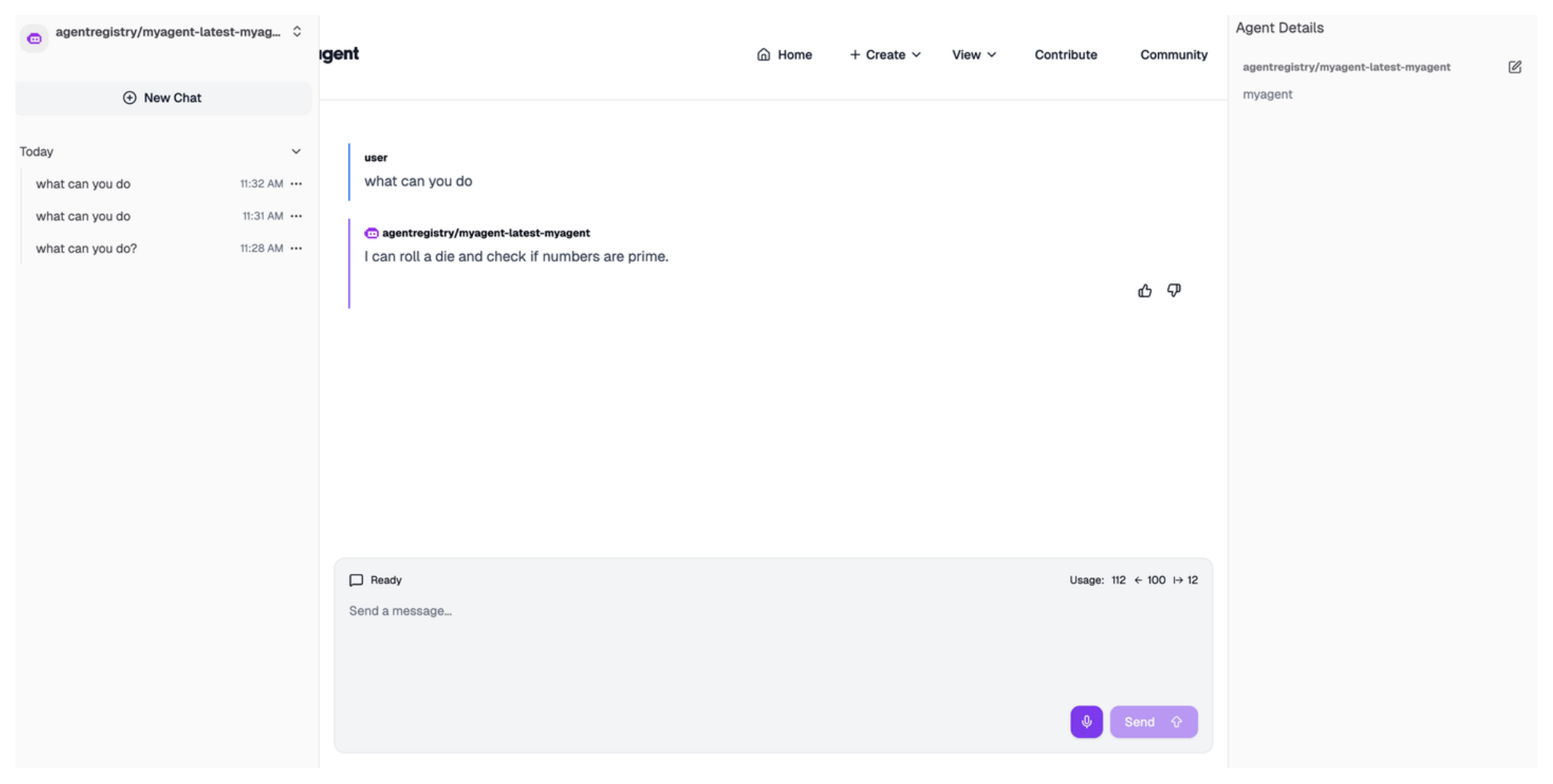
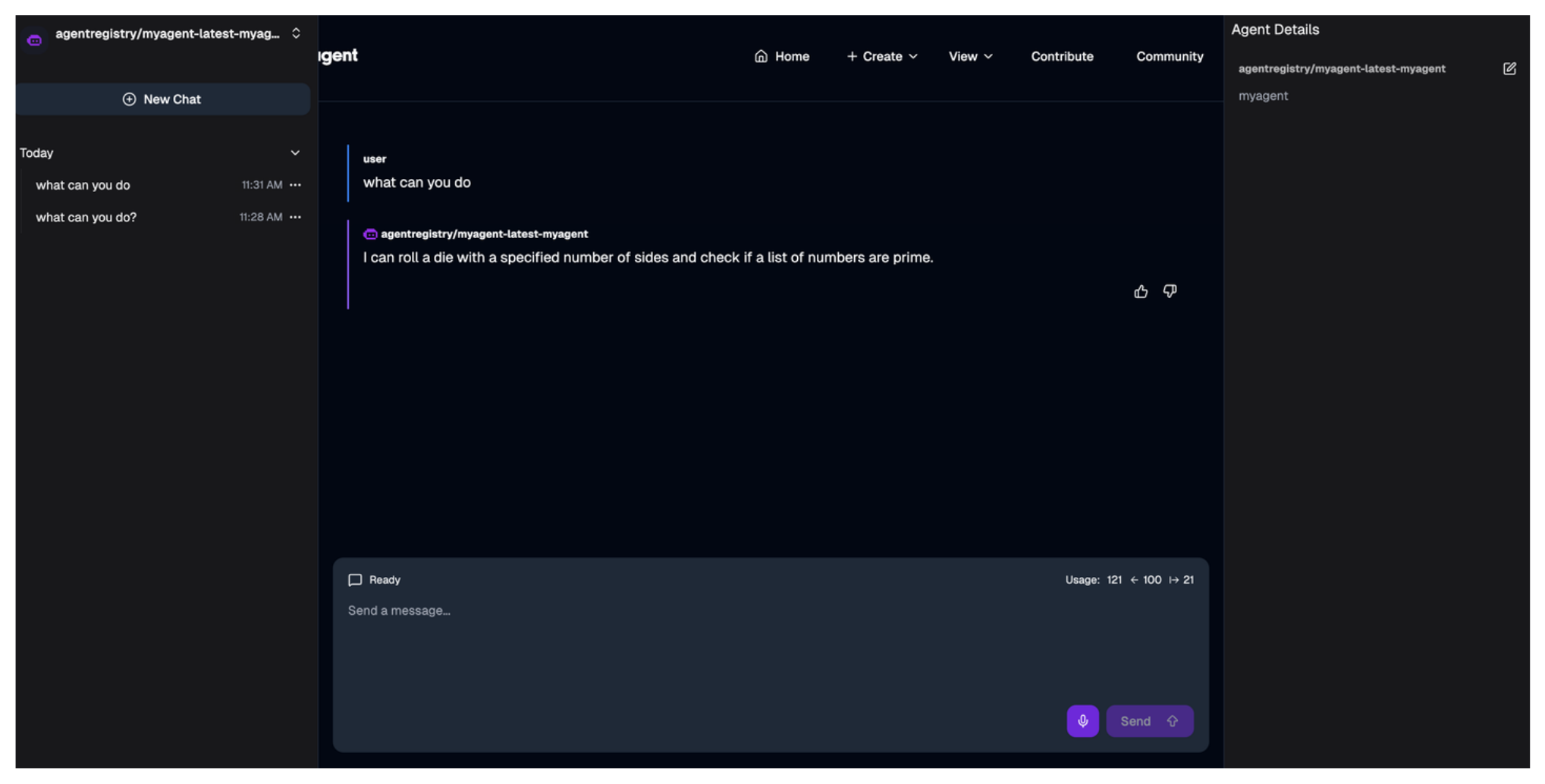
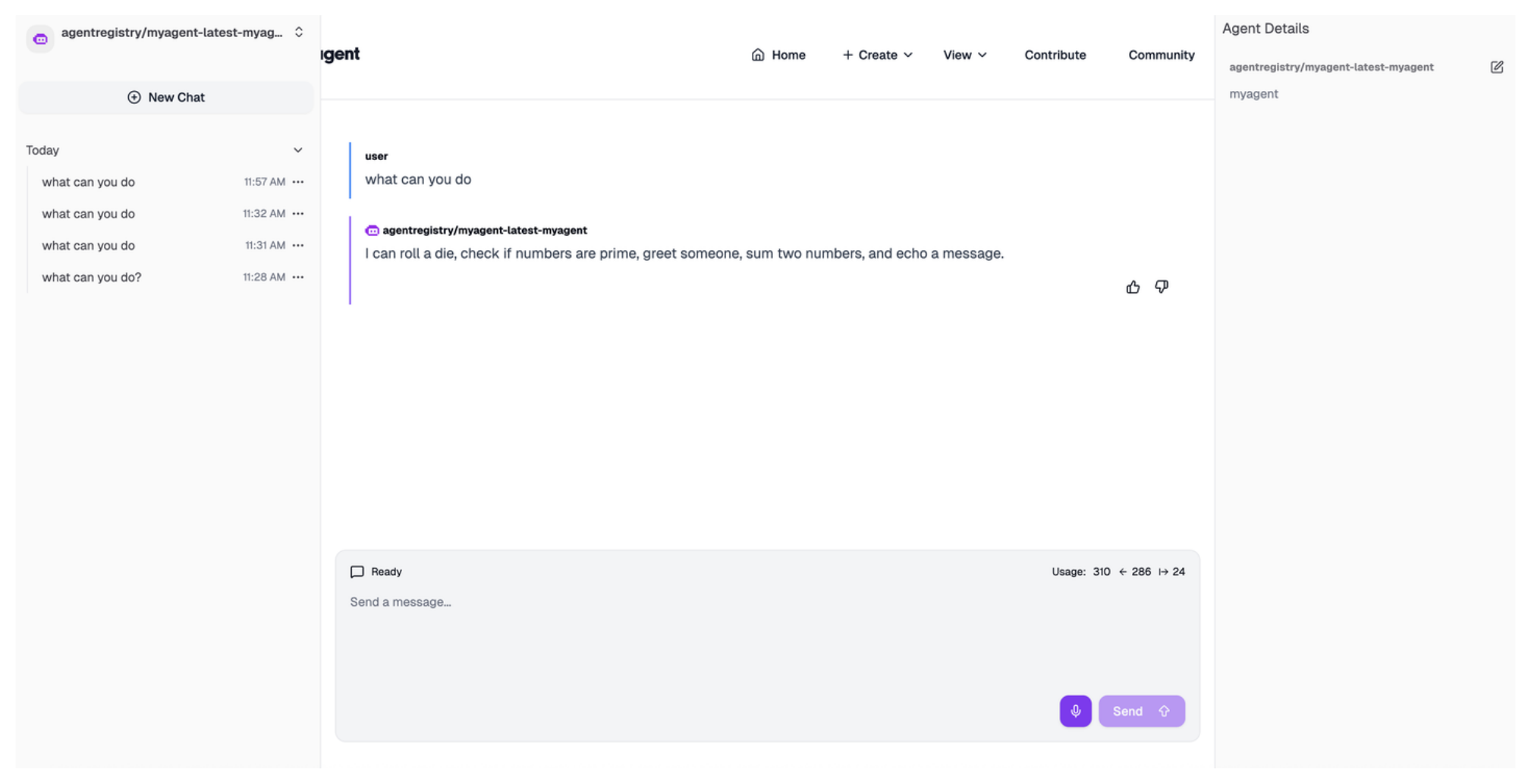
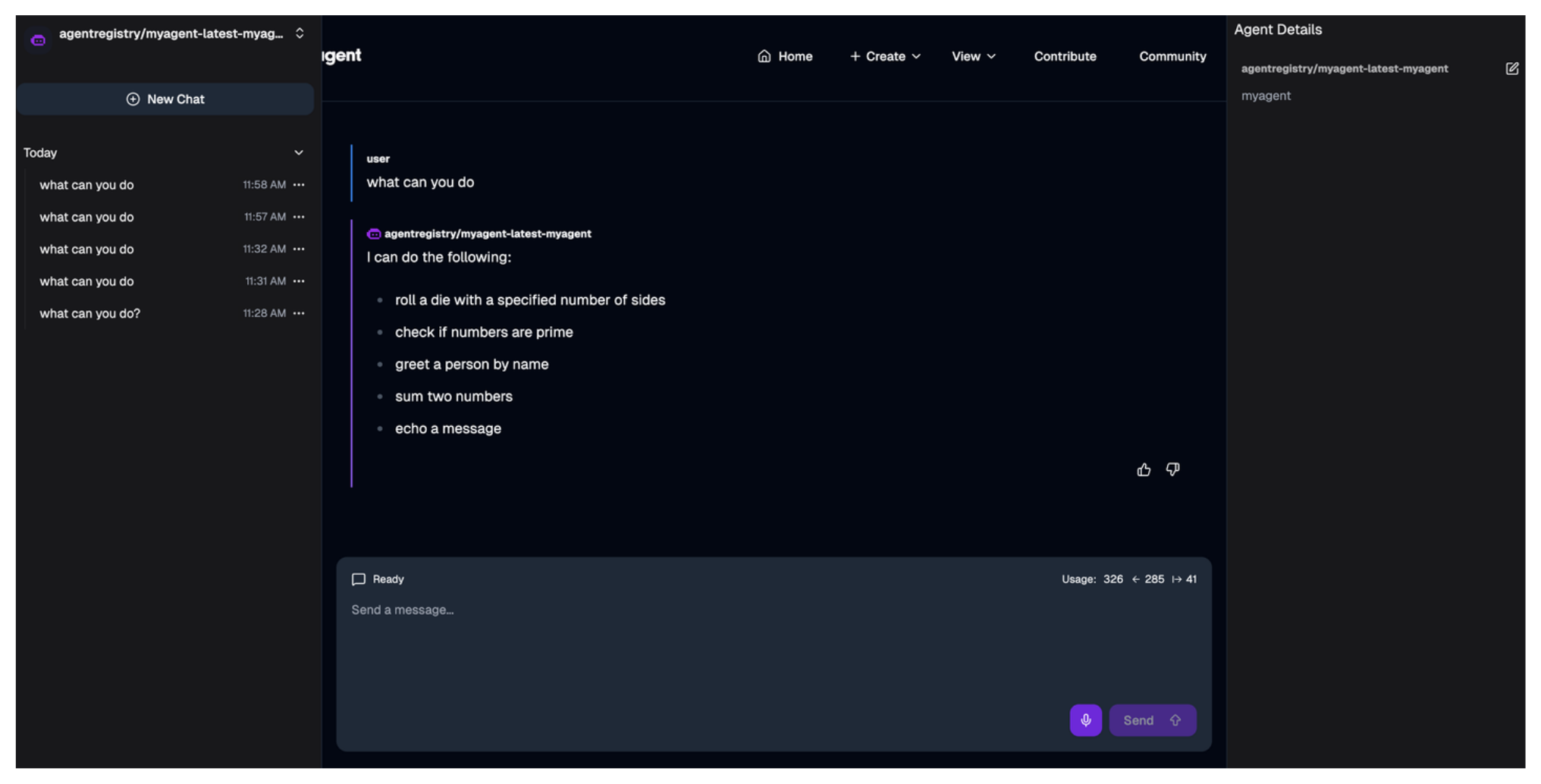
If you also referenced an MCP server, make sure that the agent also lists the MCP server tools it has access to.
Cleanup
List deployments and find the one to remove.
arctl get deploymentsDelete the deployment.
arctl delete deployment myagent